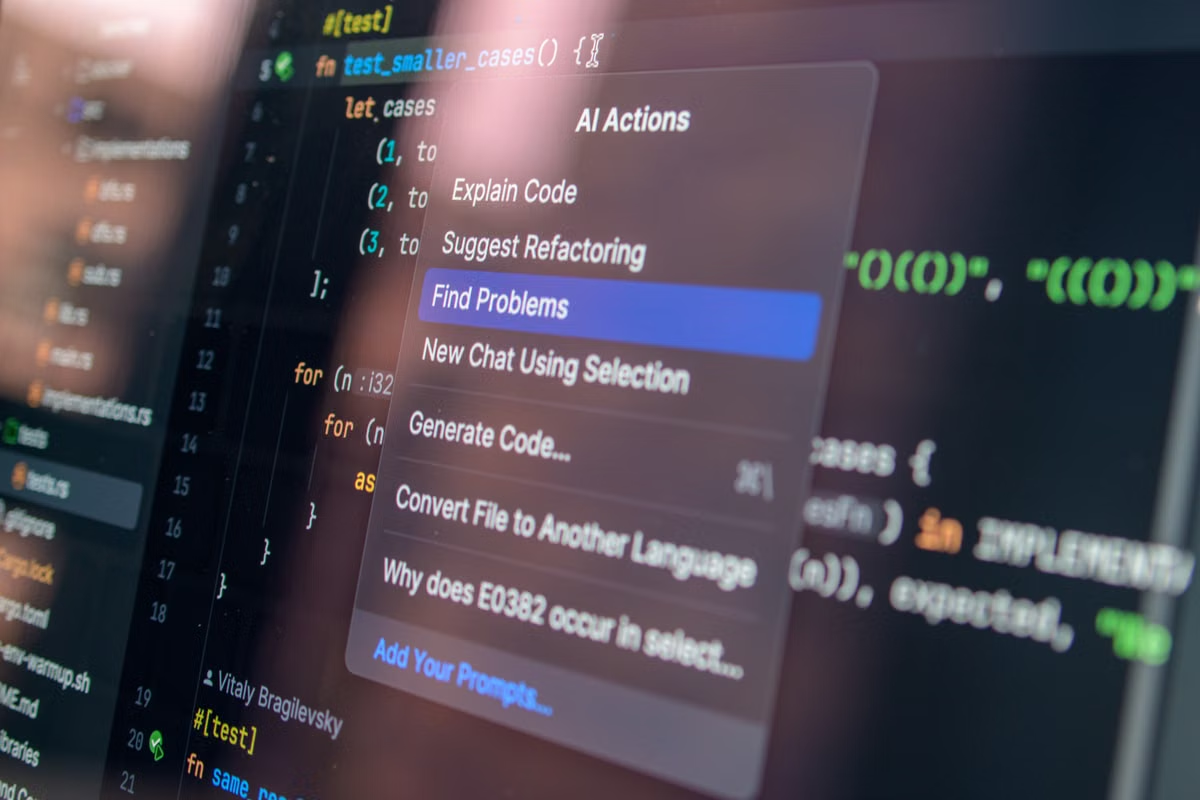
The build stops at compilation, signing, or archiving—and the alert gives you no clear cause.
Fastest route: Don’t reinstall Xcode first. Identify the failed stage, check macOS and Xcode compatibility, then inspect the project and dependencies; review signing and archiving separately. If the issue appears on only one Mac, reproduce it in a compliant, isolated macOS environment. A different environment can narrow the cause, but it cannot guarantee a successful build or app review.
This guide is for cross-border app team leads deciding whether an Xcode 27 failure threatens a release plan.
It also helps operations and technical staff responsible for iOS projects, signing, and Mac environments.
Project owners evaluating a separate remote Mac can use the comparison and checklist to keep the investigation controlled.
Last updated October 26, 2026. Version status and compatibility references were checked against Apple’s Xcode release notes and current Xcode system requirements. Check those pages again before changing a release environment; Apple may update version status or requirements.
Diagnose Xcode 27 build failures by stage
A failed build is a result, not a diagnosis. The first useful clue is the exact stage where the process stopped and the first relevant error in the build log. An alert such as “Build Failed” does not tell you whether the cause is a missing dependency, a compiler issue, a toolchain mismatch, or signing configuration.
Open the Report navigator in Xcode and select the failed build. Expand the steps until you find the earliest error that explains the failure. Record the full message, the operation that triggered it, and the environment where it occurred. Redact credentials and personal data before sharing logs, but keep the target name, build configuration, and context needed to reproduce the issue.
Apple’s build and configuration troubleshooting guide is useful for checking documented causes. Treat it as a reference, not proof that a particular project has the same fault.
A practical first-pass split is:
- Dependency resolution: A package cannot be fetched, resolved, or used by the target.
- Compilation: A source file or compiler step fails before signing.
- Signing: Compilation completes, but the project cannot use the required certificate, profile, team, or entitlement.
- Archiving: The archive action fails. Find out whether it stopped during compilation, signing, or archive packaging before deciding which settings to inspect.
Keep the original error and project state before trying fixes. That makes it possible to distinguish a genuine resolution from a change that merely hides the symptom.
Check macOS and Xcode compatibility before changing the project
A toolchain mismatch is possible, but a build error by itself does not establish one. Check the installed macOS version against the requirements for the exact Xcode release. Then check whether the project’s deployment target, SDK use, and required tooling are supported by that setup. Apple’s system requirements page and the relevant Xcode 27 release notes are the sources to consult; do not carry a compatibility conclusion forward from an older article.
This is especially important when a release team has several Macs. A machine that opens the project may still have a different Xcode build, macOS release, or selected command-line toolchain from the one used to produce the failed archive. Capture those details before updating anything.
If the required Xcode release cannot run on the current macOS version, stop changing project settings to work around the mismatch. First determine whether the Mac can be brought into a supported configuration or whether the project needs a Mac that meets the requirement. Changing deployment settings without understanding their purpose can create a separate product compatibility problem.
Compatibility check: Compare the exact installed versions with Apple’s current requirements. A result from another Xcode release does not confirm support for this one.
Isolate project and dependency errors without changing several variables
When the environment meets the project’s requirements, examine the failing target and build configuration. A project may build for one target but fail for another because the targets use different dependencies, settings, or signing requirements. The failing step in the report is more useful than a general statement that “the project does not build.”
Check whether the failure began after a source change, dependency update, configuration edit, or toolchain change. Compare the current project state with the last known build that worked, if the team has one. Avoid simultaneously updating dependencies, clearing caches, and editing build settings. If the result changes, you will not know which action mattered.
Use a controlled sequence:
- Confirm the failing target and configuration.
- Check whether dependencies resolved successfully for that target.
- Compare the project’s current toolchain selection with the intended one.
- Reproduce from the same source revision before making an edit.
- Change one relevant setting or dependency at a time, then repeat the same build action.
If the first useful error points to a dependency, follow that trail before deleting local build data. If it points to a compiler or project setting, inspect the affected target and configuration. Preserve a copy of the original state so that a speculative fix can be rolled back cleanly.
Separate signing errors from archive errors
A successful compile followed by a failed archive is a clue to split the investigation, not a reason to assume the signing account is at fault. First identify the exact step where archive creation stopped. An archive action may fail during a build phase, signing, or packaging. The location and message in the report determine what to inspect next.
For a signing-related message, review the project’s signing configuration and the credentials currently available to the team. Check the selected team, the signing identity, the provisioning profile, and any capabilities the project requires. Compare the project settings with the current state of the profile rather than assuming that a profile used by an earlier build is still suitable.
Apple explains how to create a development provisioning profile and how to edit, download, or delete profiles. Its certificate overview describes certificate roles. Use those resources to understand the required signing components; do not treat them as a way to bypass account requirements.
This article covers diagnosis, not methods to evade account rules. A successful signature or archive also does not establish that an app will pass review. Keep build, signing, archive, and review outcomes separate in release notes and internal status reports.
Reproduce a machine-specific failure with a controlled comparison
If the same project revision builds on one Mac but fails on another, compare the environments before replacing tools or moving the project. A separate macOS environment can help test whether the difference follows the machine, provided it meets the project’s requirements. It is a diagnostic control, not a promise of a fix.
The comparison needs to preserve the project conditions. Use the same source revision and build action. Record each machine’s macOS and Xcode versions, selected toolchain, dependency resolution state, target, and build configuration. If those details differ, the result cannot be attributed to the Mac alone.
Keep the test narrow. First match the source revision and dependencies. Then compare the toolchain and relevant environment settings. Change only one variable before repeating the build. If a second environment succeeds, the result narrows the search to differences in the original setup; it does not prove which difference caused the failure until that difference is tested directly.
An independent Mac is a poor test if it cannot run the required macOS and Xcode versions, if it uses a different project revision, or if it lacks the team’s required signing setup. In those cases, the comparison creates more uncertainty rather than less.
Troubleshooting checklist
- [ ] Save the full failure log and note the action that triggered it.
- [ ] Identify the first explanatory error and the stage where it occurred.
- [ ] Record the target, build configuration, source revision, and dependency state.
- [ ] Check the installed macOS and Xcode versions against Apple’s current requirements.
- [ ] Confirm whether the error is limited to one target or one dependency.
- [ ] Separate compilation success from signing and archive outcomes.
- [ ] Redact credentials before sharing logs, while preserving reproduction details.
- [ ] If comparing Macs, match the project conditions and change one variable at a time.
- [ ] Record what changed and whether the same build action now succeeds or fails.
A checklist result should narrow the next test, not substitute for it. A changed build result is only useful when the team can identify what was held constant and what was changed.
Use these comparisons to choose the next action
The tables below are diagnostic aids, not claims that a particular error always has a single cause. Start with the observed stage, then follow the evidence in the log. The right next action is the smallest test that can confirm or rule out a cause.
| Observed result | First area to inspect | Next controlled check |
|---|---|---|
| Dependency resolution stops before compilation | Dependency state and affected target | Reproduce with the same project revision and review the dependency error |
| A source or compiler step fails | Failing file, target, configuration, and toolchain | Check whether the same target fails under the same supported environment |
| Compilation passes but signing fails | Team selection, certificate, profile, and required capabilities | Compare the project’s signing settings with the currently available credentials |
| Archive stops after compilation | The exact archive step and its first error | Determine whether the stop is signing-related or occurs during packaging |
| Only one Mac reproduces the error | Environment and toolchain differences | Match the source revision and dependencies, then change one environment variable |
| Test option | What it can establish | Main limitation |
|---|---|---|
| Inspect the failing log on the current Mac | Where the action stopped and which error appeared first | The log may identify a symptom without proving its underlying cause |
| Rebuild after one targeted project change | Whether that change affects the failure | A broad set of simultaneous edits makes the result hard to interpret |
| Compare with another compliant Mac | Whether the failure follows a differing environment condition | Different source, dependencies, or signing state invalidate the comparison |
| Use a separate remote Mac for reproduction | Whether a controlled, isolated environment changes the result | It does not guarantee a successful build, safe account status, or app approval |
| Situation | Recommended decision | Avoid |
|---|---|---|
| macOS or Xcode falls outside the project’s required setup | Find a Mac environment that meets the documented requirement before further diagnosis | Changing unrelated project settings to compensate for an unsupported setup |
| One target or dependency fails consistently | Investigate that target or dependency while preserving the current project state | Updating every dependency and clearing caches in one attempt |
| Compilation succeeds but signing fails | Review team, certificate, profile, and capability configuration separately | Treating an archive alert as proof that the source code is faulty |
| The failure occurs on one Mac only | Run a controlled comparison with matched project inputs | Declaring the Mac defective based on a single different build result |
For teams that need to compare environment options before arranging a test, BookaMac’s Mac comparison guide can help frame the choice. For environment access and usage details, refer to BookaMac documentation. Neither resource replaces checking the project’s actual Xcode and macOS requirements.
FAQ: resolve the next diagnostic question
What should you inspect first after an Xcode 27 compile error?
Open the failed report and locate the first explanatory error, not just the final alert. Record the target, configuration, source revision, and dependency state. Then confirm that the installed Xcode and macOS releases meet Apple’s current requirements. If the failure points to a specific target or dependency, investigate that path first. Avoid broad cleanup or multiple edits until a controlled reproduction identifies what changed.
Does an Xcode 27 build failure mean the macOS version is incompatible?
Not necessarily. Compatibility is one possible cause, but the error message alone does not confirm it. Check the current Apple system requirements and release notes for the exact Xcode release, then compare them with the Mac’s installed macOS and the project’s platform settings. Requirements can change between releases. A result from another machine or an older Xcode version is not enough to establish support for the current setup.
How do you distinguish an archive problem from a signing problem?
Check the report to see whether compilation completed and identify the precise step where archive creation stopped. If the message concerns a certificate, provisioning profile, team, or entitlement, review signing separately. If a source or dependency step failed first, start with the project or toolchain instead. Keep the complete log and avoid interpreting a generic archive alert as a specific diagnosis.
Will a second Mac show whether the original environment caused the build failure?
It can help if both Macs meet the project’s requirements and use the same source revision, build action, and comparable dependency state. Record the differences and change one variable at a time. A different result narrows the search, but it does not prove the cause without a targeted follow-up test. It also does not guarantee a future build, successful signing, account safety, or app review.
Choose a test environment that answers the question
The practical choice is not “local Mac or remote Mac” in general. It is whether the proposed environment can run the required macOS and Xcode versions, preserve the project inputs, and provide the signing setup needed for the specific test. If any of those conditions is missing, a remote session may be useful for other work but will not provide a valid comparison for this failure.
A local Mac is usually the simplest option when the team can keep its toolchain consistent and needs physical access to devices or other hardware. Its disadvantages are tied to the team’s own setup: configuration drift, shared-machine changes, and difficulty separating a local issue from a project issue. A separate cloud environment can reduce some of that overlap, but adds remote access, environment preparation, and account-credential handling to the test.
Renting a Mac from BookaMac can make sense when the team needs a temporary, separate macOS environment to reproduce a failure without buying another machine. Before renting, verify that the available environment matches the project’s required macOS and Xcode versions, then test with the team’s own project and signing setup. If the work is sustained, high-load, or depends on physical device connections, a dedicated local Mac may be more suitable. A remote Mac can improve the conditions for comparison; it cannot repair a project configuration or guarantee a successful archive.
Frequently asked questions
What should you check first when Xcode 27 reports a compile error?
Start with the failing build step and the complete error in the Report navigator, not the alert title. Note the target, build configuration, source revision, and dependency state. Then compare the installed Xcode and macOS versions with Apple's current requirements. If the error is confined to one target or dependency, investigate that project path before clearing caches or changing several settings.
Could an Xcode 27 build failure be caused by an unsupported macOS version?
It could, but the error alone does not prove a compatibility problem. Check Apple's current Xcode system requirements and release notes for the exact Xcode release, then compare them with the Mac's installed macOS version and the project's target platform. Requirements can change across releases, so do not rely on an older compatibility table or a result from a different Xcode build.
How can you tell whether an archive failure is a project problem or a signing problem?
First establish whether the project compiles successfully with the same source revision and build configuration. If compilation passes but archive creation reports a certificate, profile, entitlement, or team setting issue, investigate signing separately. If the archive stops earlier on a source or dependency error, treat it as a project or toolchain failure. Keep the full log; an alert label is not enough to identify the cause.
Can a second Mac help determine whether an Xcode build problem is local to the current environment?
Yes, when the second Mac meets the project's macOS and Xcode requirements and you keep the source revision and dependency state comparable. Change one environment variable at a time and record the result. A successful build on another machine narrows the investigation; it does not prove the original Mac is defective, guarantee future builds, or establish that signing or App Store review will succeed.
Isolate Your Xcode Build on a Dedicated Mac
Run your failing build on a dedicated physical Mac mini to separate environment issues from project changes.